Getting to know computers
Students learn the parts of a computer they can see and touch, like the keyboard, screen, and mouse. They notice where computers show up at school, at home, and around town.
This is the year students notice that computers are everywhere and start learning the small habits that make them useful. Students spot patterns, follow simple step-by-step directions, and find the mistake when the steps go wrong. They practice on a keyboard, search for a picture with one keyword, and learn why a password stays private. By spring, students can follow a short set of steps to finish a task on a device and explain what to do if something looks unsafe.
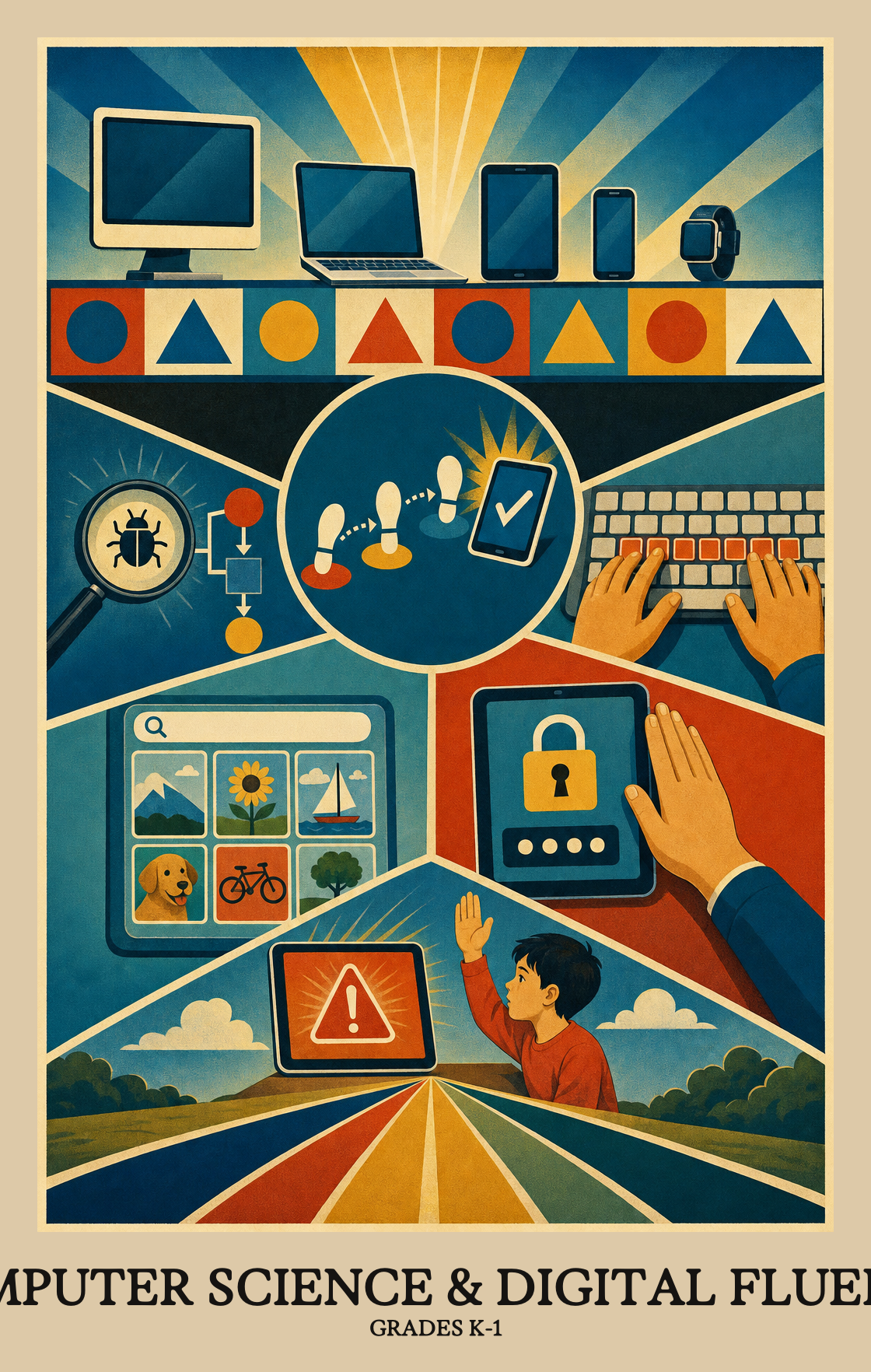
Students learn the parts of a computer they can see and touch, like the keyboard, screen, and mouse. They notice where computers show up at school, at home, and around town.
Students look for patterns in things like leaves, shapes, and weather, then use those patterns to make predictions. They also start collecting simple information and showing it in a picture or chart.
Students take a task and break it into small steps, then follow the steps in order to finish the job. When something goes wrong, they look back at the steps and fix the mistake.
Students learn which information is private, like names and passwords, and which is okay to share. They practice asking a grown-up before opening links or files they do not know.
Students use a simple app or website to make something of their own, like a drawing, story, or short message. They also try a basic search using one keyword to find a picture or fact.
Students spot a repeating pattern, such as stripes on a leaf or a color sequence in a row of blocks, then use it to guess what comes next.
Data is information you can collect, like how many kids are in class or what the weather is today. Students learn to spot the different kinds of information around them every day.
Students collect simple information, like how many classmates prefer cats or dogs, then work together to turn it into a picture or chart that makes the answer easy to see.
Breaking a big task into smaller steps is a key thinking skill. Students look at a problem, like getting ready for school, and practice naming the smaller steps needed to finish it.
A recipe can say "make a sandwich" or spell out every step from opening the bread bag to spreading the butter. Students learn that instructions can be simple and broad or broken into smaller, more detailed steps.
Students follow a set of step-by-step instructions to finish a task, like a recipe or a set of directions in a game. They learn that computers work the same way: one step at a time, in order.
Variables in code can hold different values as a program runs. Students learn to recognize words or labels that stand for changing information, like a score that goes up or a name that switches.
Students look at a set of instructions and spot the steps that happen more than once. Recognizing repeated steps is the first move in learning to write efficient code.
Finding and fixing mistakes in a set of instructions is called debugging. Students spot where a simple set of steps goes wrong and figure out how to correct it.
Students work with a partner to list the steps for completing a task in order, like drawing a picture or making a sandwich, before they start.
Students learn why some information, like a home address or password, should stay private and not be shared online or with strangers.
Students learn why keeping a password private matters. A secure account means only the right person can see their files, messages, or schoolwork.
This standard isn't taught yet at this grade level. It starts in second grade.
Students follow a simple key to turn coded symbols or letters back into readable words. This is how secret messages work, and it's the same idea behind keeping information safe online.
Students learn when it is safe to click a link or open a file, and when to stop and ask a trusted adult first.
Students learn where the letters, numbers, and special keys sit on a keyboard and practice pressing them. It is the first step toward typing on a computer.
Students use apps, tablets, or computers to share ideas and work together. This could mean typing a message, recording a voice note, or collaborating on a shared document with a classmate.
Students type a word into a search bar and look through the results to find information on that topic.
Students pick a digital tool, like a drawing app or simple word processor, and use it to make something: a picture, a short story, or a basic document.
This standard isn't taught yet at this grade level. It starts in a later grade.
This standard starts in 2nd grade. Nothing is expected of students in kindergarten or 1st grade for this skill.
Students name what it means to be kind, honest, and safe online. They can tell the difference between a good digital choice (sharing helpful information) and a poor one (leaving out a name or being unkind in a message).
Students compare how everyday tasks work with and without technology. Brushing teeth needs no computer; finding directions on a phone does.
Students name rules about using devices and screens at school and at home, then explain why those rules exist.
Students look around their classroom, home, and neighborhood to spot devices like computers, tablets, phones, and smartboards. They learn that these tools all count as computing technology.
Students sort places and information into two buckets: things that are open to everyone (a park, a classroom) and things meant only for you (a home address, a password).
This standard isn't taught yet in Kindergarten or 1st grade. It starts in 2nd grade.
Students name the different ways people use computers and devices in everyday life, like typing a message, tapping a screen, or talking to a speaker.
Students name real jobs where people use computers or tablets to get their work done, like doctors checking records, drivers following maps, or teachers running lessons.
Students learn how people talk to computers and how computers talk back. Typing on a keyboard or tapping a screen sends input in; what shows up on the display or comes out of the speakers is the output.
Students name the physical parts of a computer or tablet, things like the screen, keyboard, and buttons, and explain what each part does.
Students learn to notice when something is wrong with a device or program, like a frozen screen or a button that won't respond. They name the problem so an adult can help fix it.
Protocols are rules that help computers send and receive information reliably. Students learn why those rules matter when a message travels far, like from one school to another across the country.
Students name physical objects that hold information, like a phone, a computer, or a flash drive.
| Standard | Definition | Code |
|---|---|---|
| Spot patterns and predict what comes next Grades K-1 | Students spot a repeating pattern, such as stripes on a leaf or a color sequence in a row of blocks, then use it to guess what comes next. | K-1.CT.1 |
| Spotting data in everyday life Grades K-1 | Data is information you can collect, like how many kids are in class or what the weather is today. Students learn to spot the different kinds of information around them every day. | K-1.CT.2 |
| Turning data into pictures Grades K-1 | Students collect simple information, like how many classmates prefer cats or dogs, then work together to turn it into a picture or chart that makes the answer easy to see. | K-1.CT.3 |
| Breaking big problems into steps Grades K-1 | Breaking a big task into smaller steps is a key thinking skill. Students look at a problem, like getting ready for school, and practice naming the smaller steps needed to finish it. | K-1.CT.4 |
| Same task, different levels of detail Grades K-1 | A recipe can say "make a sandwich" or spell out every step from opening the bread bag to spreading the butter. Students learn that instructions can be simple and broad or broken into smaller, more detailed steps. | K-1.CT.5 |
| Following steps to finish a task Grades K-1 | Students follow a set of step-by-step instructions to finish a task, like a recipe or a set of directions in a game. They learn that computers work the same way: one step at a time, in order. | K-1.CT.6 |
| Values that change over time Grades K-1 | Variables in code can hold different values as a program runs. Students learn to recognize words or labels that stand for changing information, like a score that goes up or a name that switches. | K-1.CT.7 |
| Spotting steps that repeat Grades K-1 | Students look at a set of instructions and spot the steps that happen more than once. Recognizing repeated steps is the first move in learning to write efficient code. | K-1.CT.8 |
| Finding and fixing errors in instructions Grades K-1 | Finding and fixing mistakes in a set of instructions is called debugging. Students spot where a simple set of steps goes wrong and figure out how to correct it. | K-1.CT.9 |
| Planning steps together to finish a task Grades K-1 | Students work with a partner to list the steps for completing a task in order, like drawing a picture or making a sandwich, before they start. | K-1.CT.10 |
| Why we keep information private Grades K-1 | Students learn why some information, like a home address or password, should stay private and not be shared online or with strangers. | K-1.CY.1 |
| Why passwords keep accounts safe Grades K-1 | Students learn why keeping a password private matters. A secure account means only the right person can see their files, messages, or schoolwork. | K-1.CY.2 |
| Not taught in K-1 Grades K-1 | This standard isn't taught yet at this grade level. It starts in second grade. | K-1.CY.3 |
| Decode a secret message Grades K-1 | Students follow a simple key to turn coded symbols or letters back into readable words. This is how secret messages work, and it's the same idea behind keeping information safe online. | K-1.CY.4 |
| When to click a link or open a file Grades K-1 | Students learn when it is safe to click a link or open a file, and when to stop and ask a trusted adult first. | K-1.CY.5 |
| Keyboard keys and what they do Grades K-1 | Students learn where the letters, numbers, and special keys sit on a keyboard and practice pressing them. It is the first step toward typing on a computer. | K-1.DL.1 |
| Working with others using digital tools Grades K-1 | Students use apps, tablets, or computers to share ideas and work together. This could mean typing a message, recording a voice note, or collaborating on a shared document with a classmate. | K-1.DL.2 |
| Search with a keyword Grades K-1 | Students type a word into a search bar and look through the results to find information on that topic. | K-1.DL.3 |
| Make something with a digital tool Grades K-1 | Students pick a digital tool, like a drawing app or simple word processor, and use it to make something: a picture, a short story, or a basic document. | K-1.DL.4 |
| Not taught in K, 1 Grades K-1 | This standard isn't taught yet at this grade level. It starts in a later grade. | K-1.DL.5 |
| Not taught in kindergarten or first grade Grades K-1 | This standard starts in 2nd grade. Nothing is expected of students in kindergarten or 1st grade for this skill. | K-1.DL.6 |
| Good and bad digital citizenship Grades K-1 | Students name what it means to be kind, honest, and safe online. They can tell the difference between a good digital choice (sharing helpful information) and a poor one (leaving out a name or being unkind in a message). | K-1.DL.7 |
| Life with and without computers Grades K-1 | Students compare how everyday tasks work with and without technology. Brushing teeth needs no computer; finding directions on a phone does. | K-1.IC.1 |
| Rules for using devices at home and school Grades K-1 | Students name rules about using devices and screens at school and at home, then explain why those rules exist. | K-1.IC.2 |
| Computers and tech around us Grades K-1 | Students look around their classroom, home, and neighborhood to spot devices like computers, tablets, phones, and smartboards. They learn that these tools all count as computing technology. | K-1.IC.3 |
| Public and private spaces Grades K-1 | Students sort places and information into two buckets: things that are open to everyone (a park, a classroom) and things meant only for you (a home address, a password). | K-1.IC.4 |
| Not taught in K-1 Grades K-1 | This standard isn't taught yet in Kindergarten or 1st grade. It starts in 2nd grade. | K-1.IC.5 |
| Ways people use computers Grades K-1 | Students name the different ways people use computers and devices in everyday life, like typing a message, tapping a screen, or talking to a speaker. | K-1.IC.6 |
| Jobs that use computers Grades K-1 | Students name real jobs where people use computers or tablets to get their work done, like doctors checking records, drivers following maps, or teachers running lessons. | K-1.IC.7 |
| Input and output on computing devices Grades K-1 | Students learn how people talk to computers and how computers talk back. Typing on a keyboard or tapping a screen sends input in; what shows up on the display or comes out of the speakers is the output. | K-1.NSD.1 |
| Parts inside a computer Grades K-1 | Students name the physical parts of a computer or tablet, things like the screen, keyboard, and buttons, and explain what each part does. | K-1.NSD.2 |
| Spotting broken hardware and software Grades K-1 | Students learn to notice when something is wrong with a device or program, like a frozen screen or a button that won't respond. They name the problem so an adult can help fix it. | K-1.NSD.3 |
| Sharing information across long distances Grades K-1 | Protocols are rules that help computers send and receive information reliably. Students learn why those rules matter when a message travels far, like from one school to another across the country. | K-1.NSD.4 |
| Devices that store information Grades K-1 | Students name physical objects that hold information, like a phone, a computer, or a flash drive. | K-1.NSD.5 |
Students notice patterns, sort information, and follow step-by-step directions. They start learning the parts of a computer, practice typing on a keyboard, and talk about what is safe to share online. Most of the work happens through games, stories, and hands-on activities, not long screen time.
Spot patterns on a walk, like cracks in the sidewalk or stripes on a shirt. Sort socks or coins into groups and talk about why. Give simple step-by-step directions, like a recipe, and let students follow along to build the habit of thinking in steps.
No. At this age, most of the thinking skills happen off-screen. Sorting toys, finding the missing step in a routine, and fixing a mistake in a drawing all build the same skills students will later use on a computer.
Students should know that some information, like a full name, address, or password, stays private. They should ask a grown-up before clicking links or opening files. A short rule at home, such as ask first, then click, goes a long way.
Start with patterns and sorting, since those skills feed into everything else. Move into step-by-step directions and fixing mistakes in those steps. Save keyboard practice, online searching, and digital citizenship for later in the year, once students can talk about steps and rules with confidence.
Breaking a task into smaller steps and finding the mistake in a set of directions tend to take the longest. Students often skip steps or fix the wrong one. Short daily practice with classroom routines, like lining up or packing a backpack, helps more than a single big lesson.
Most of these skills work unplugged. Use picture cards for steps, a paper keyboard for finger placement, and classroom objects for sorting and patterns. Save device time for one or two activities a week, like creating a simple drawing or following a short coding game.
By spring, students should describe a pattern, follow a four or five step set of directions, and spot a mistake in those steps. They should name parts of a computer like the screen, keyboard, and mouse, and explain one rule for staying safe online.
An algorithm is just a set of steps in order, like brushing teeth or making a sandwich. Students practice giving and following these steps, then learn to spot when a step is missing or out of order. The word matters less than the habit of thinking in steps.